

What You Need
- An Aries account, with access to Client Center.
- An MCP key from Client Center: open the API section and click Generate MCP Key. The MCP setup guide walks through it.
- Claude Code installed. The
claude mcp addcommand below was run with Claude Code 2.1.332.
Why an AI Trading Agent Needs Your Approval Before It Trades
An agent that can place orders will sometimes try to place one you didn’t intend. It can misread a request, size a position from a stale quote, or follow instructions hidden in a web page or a file. That last one is indirect prompt injection, and OWASP’s answer is to “implement human-in-the-loop controls for privileged operations.” The MCP specification goes further: “there SHOULD always be a human in the loop with the ability to deny tool invocations.” And FINRA’s 2026 oversight report lists “AI agents acting autonomously without human validation and approval” as a risk of AI agents. So here’s the setup: the agent researches, every order waits for you, and a Claude Code setting makes sure of it. The agent doesn’t decide what you trade, and nothing here promises a return. It helps you look. You decide.How an AI Agent Places Trades Through a Brokerage API
In this setup, every order takes six steps.

Step 4 is the only one that needs you, and the one the agent must never skip.
POST /v1/orders, whatever the order type. The response confirms Aries accepted the order. Fills arrive later on the account WebSocket, so a good agent reports what actually happened, not what it sent. The order flow guide covers the full lifecycle.
Connect Claude Code to Your Brokerage Account With the Aries MCP Server
Aries hosts the server itself. Your agent connects to the same infrastructure Aries’ own brokerage runs on. Add it once, for all your projects:--scope user is the part that makes it work in every project, as Claude Code’s MCP docs explain.
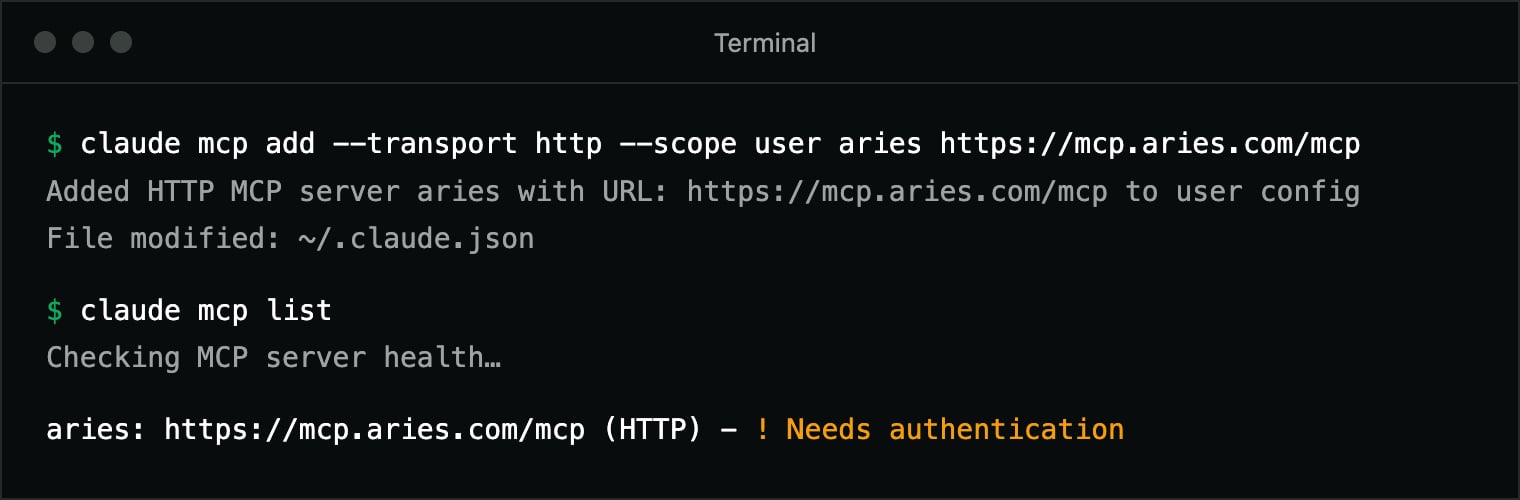
Our test run with Claude Code 2.1.332. Until you sign in, claude mcp list shows the server as needing authentication. Home folder shortened to ~.
/mcp, select aries and choose Authenticate. Aries asks for your MCP key in the browser, then you sign in and click Allow. The Claude Code setup guide has every step and the fixes for common sign-in errors.
Your account can have one active MCP connection at a time.
Give the Agent Read-Only Access Until You Approve Each Order
Claude Code uses permission rules in a settings file to decide which tools run without asking. Anask rule makes Claude Code stop and ask you before a tool runs. Put this in ~/.claude/settings.json to cover every Aries tool in every project, or in .claude/settings.json to cover one project:
mcp__aries matches every tool the aries server provides, and mcp__aries__<tool> matches just one.
This is the lock that matters. Claude Code enforces it, not the model: “Instructions in your prompt or CLAUDE.md shape what Claude tries to do, but they don’t change these rules.” A line in your prompt that says “always ask me first” is a request. This rule is a setting.
Two things to know before you change it:
askbeatsallow. Claude Code checks deny rules first, then ask, then allow, and the first match wins. Ifmcp__ariesis inask, adding a read tool toallowchanges nothing: it still asks.- Narrow it with tool names, not guesses. Once you want reads to run on their own, run
/mcpand select a tool to see its full name, as Claude Code’s MCP docs describe. Then replacemcp__arieswith oneaskrule per tool that places, changes or cancels an order, and put the read tools inallow. Now the agent researches without asking, and every order still waits for you.
/permissions at any time to see which rules are active and which file each one comes from.
Start with questions that only read, like “What’s in my Aries portfolio?” or “What’s the current price of AAPL?” With the ask rule on every Aries tool, each one still stops for your yes. That’s the point of the first session: you see which tools the agent reaches for and what comes back, before anything can trade. Once the reads look right, move those tools to allow and keep the order tools in ask.
Paper Trading First: Use Your Simulation Account
Aries accounts can include a simulation account next to your live one, and the accounts endpoint marks each one with a simulation flag. Run your first sessions there. Start each session by asking the agent which account it will use, and to stop if it isn’t the simulation account. Then ask it to preview every order before it asks you to approve it. The preview endpoint,POST /v1/orders/preview, works out what an order would cost and how it would change your buying power, without placing it.
A prompt that sets both up:


What an approval looks like with the prompt above. Example only, not a recommendation.
Give Your Own Agent Delegated Access With OAuth Scopes
If you build your own agent on the Aries API instead of Claude Code, your users never hand it a password. They sign in with their own Aries account over OAuth2, and the access token only works for the scopes they approved on the consent screen. Scopes are the strongest limit you control here.order:execution is the only scope that places, modifies or cancels orders. An agent that only researches never needs it, so a leaked token can’t trade. A research-only agent can ask for:
options:information, analytics:information or calendar:information when the agent needs options chains, analytics or calendars. The preview endpoint also needs order:execution, so add it only to the part of your app that previews and places orders after a person approves them.
The quickstart walks through the sign-in request step by step.
Pick the sign-in flow by who the agent acts for. An agent other people use runs the Authorization Code flow when it has a backend that can keep a client secret, or the PKCE flow in a browser or mobile app with no server secret. Each user signs in and approves the scopes themselves. An agent that only ever trades your own account can use a personal-token client with the Client Credentials flow: it swaps a client ID and secret for a short-lived token that acts as you, with no sign-in screen.